How I Fixed the Black Screen Issue in KDE Plasma
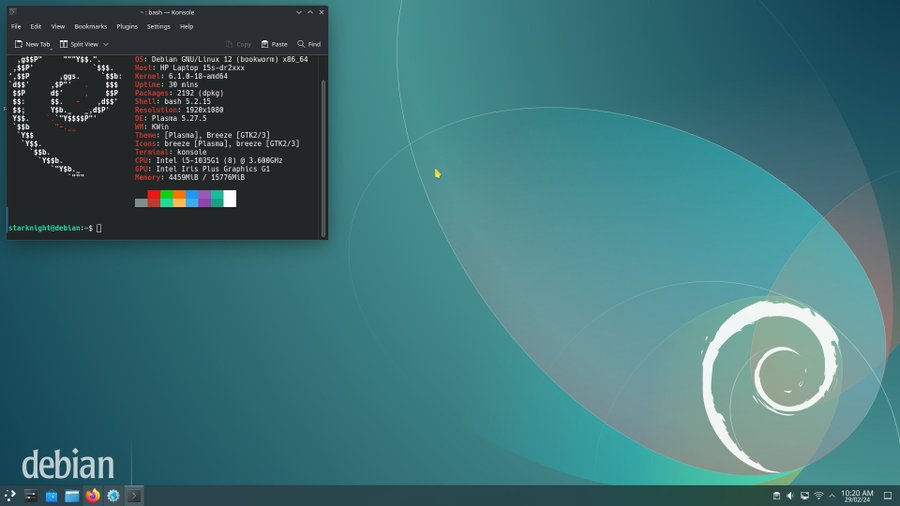
You log in to KDE Plasma and get a black screen. Maybe a mouse cursor, no desktop, no panel. I've hit this on my own machine, and recently watched it happen on a friend's laptop the first time he tried Plasma.
The good news: it's usually one crashed program, not a broken system. This post gives you the quick fix, what to do when you can't even open a terminal, how to find out what actually crashed, and how to stop it coming back.
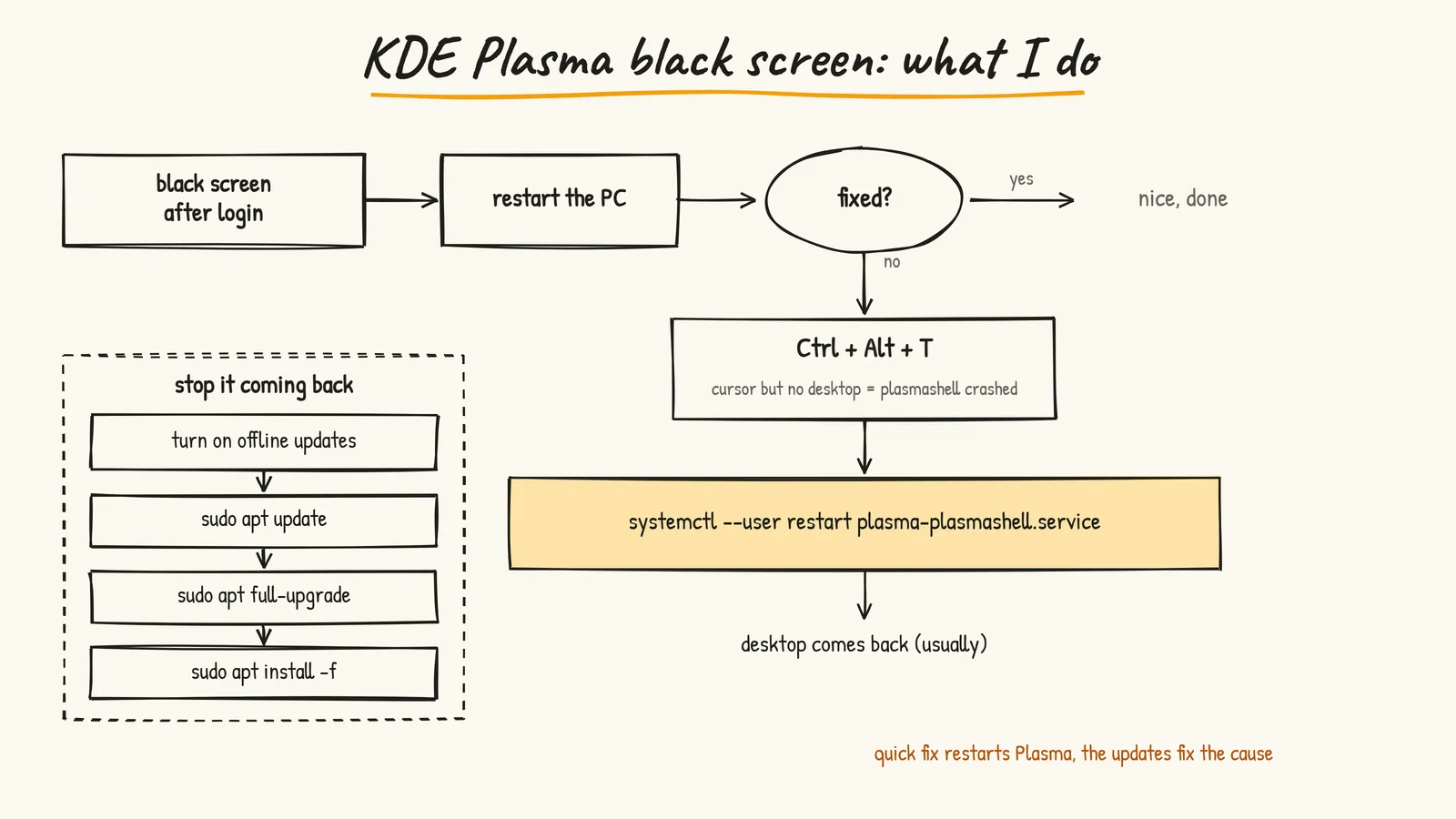
Here's the whole fix on one page, then the details:
First, Figure Out What Broke
Plasma is a few programs working together. The two that matter here:
- plasmashell draws your desktop, wallpaper, panel and widgets
- KWin is the compositor. It draws your windows and the cursor on screen
A KDE developer put it simply on the KDE forum: if you still have a cursor, it's plasmashell. If nothing is responding at all, it's KWin that failed to start.
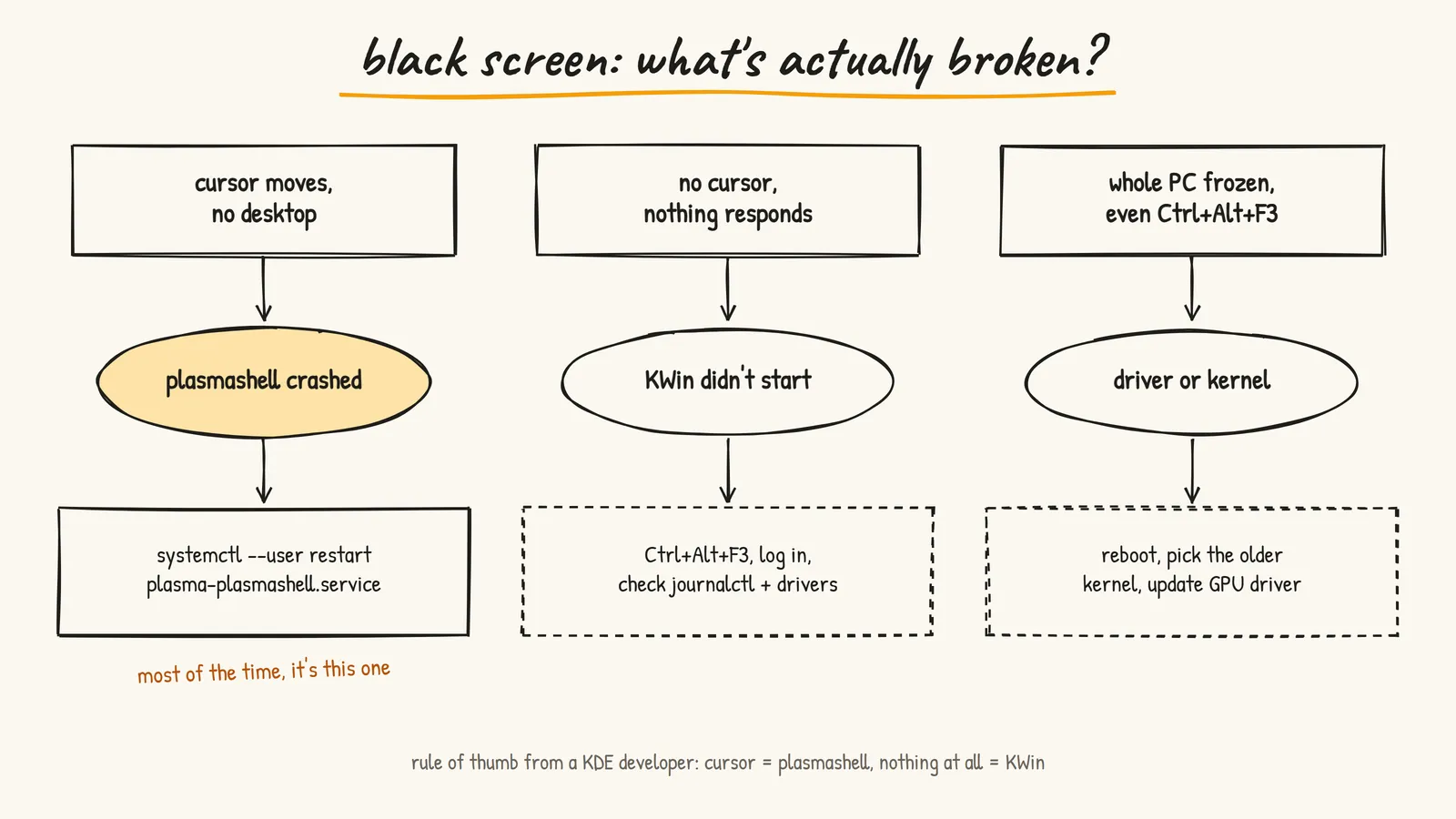
Most of the time it's the first one, which is the easy case.
Temporary Fix
-
Yeah, the old school method first: restart the system. If that fixes it, fine. If it keeps happening, keep reading.
-
Press
Ctrl + Alt + Tto open a terminal. This often still works even when the desktop is gone. -
If you can see the mouse cursor but not the desktop, plasmashell has most likely crashed.
-
Run this:
systemctl --user restart plasma-plasmashell.serviceThis restarts plasmashell, and your desktop should come back. Your open apps keep running, because they don't live inside plasmashell.
If that command complains, this older pair of commands does the same job on Plasma 6:
kquitapp6 plasmashell
kstart plasmashell
When You Can't Even Open a Terminal
If Ctrl + Alt + T does nothing, use a TTY. It's a plain text login that runs outside the desktop.
- Press
Ctrl + Alt + F3 - Log in with your normal username and password
- Run the same restart command:
systemctl --user restart plasma-plasmashell.service- Switch back to your desktop with
Ctrl + Alt + F1orCtrl + Alt + F2(which one depends on your distro)
This works because the --user services belong to your user, not to one screen, so restarting from the TTY fixes the desktop session too.
Find Out What Actually Crashed
Restarting fixes the symptom. If it keeps coming back, look at why. From a terminal or TTY:
See what plasmashell logged during this boot:
journalctl --user -b -u plasma-plasmashell.serviceSee whether it actually crashed, and where:
coredumpctl info plasmashellOn Debian, coredumpctl needs the systemd-coredump package. If the command isn't found, install it and wait for the next crash:
sudo apt install systemd-coredumpLook for the last lines before the crash. Usually you'll see a widget, a wallpaper plugin, or a graphics error mentioned by name. That tells you what to remove or update.
Common Causes (and Fixes)
- A broken widget or wallpaper plugin. Third-party widgets are a classic cause. If the logs mention one, remove it. If you can't get to the desktop to do that, reset your panel and widget layout (this moves your layout aside, it doesn't delete it):
mv ~/.config/plasma-org.kde.plasma.desktop-appletsrc ~/.config/plasma-org.kde.plasma.desktop-appletsrc.bak
systemctl --user restart plasma-plasmashell.service
You'll get the default desktop back. Re-add your widgets one at a time to find the bad one.
-
Display settings the screen doesn't like. A refresh rate or resolution your monitor or driver doesn't really support can leave you with a black screen. Log in to a different session (see below), set a normal refresh rate, and switch back.
-
Graphics drivers. Especially on NVIDIA. Make sure you're on the driver version your distro recommends, and update it together with the rest of the system.
-
Wayland vs X11. If Wayland keeps failing, try the "Plasma (X11)" session from the login screen to see if the problem goes away. Heads up: Plasma 6.7 is the last version with an X11 session. Plasma 6.8, due October 14, 2026, is Wayland only, so treat X11 as a temporary workaround, not a fix.
Permanent Fix
To stop this from happening again, keep your system up to date. Outdated or half-upgraded packages are a very common reason Plasma crashes.
- First, in System Settings > Software Update, set system updates to apply after restart (offline updates).
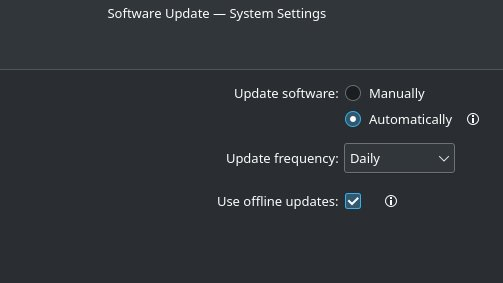
- This installs updates during a reboot instead of while Plasma is running, which avoids a lot of weird half-updated states.
- Then, from a terminal:
sudo apt update
sudo apt full-upgrade
sudo apt install -f
apt updaterefreshes the package list. My original version of this post skipped it, and without it the upgrade can't see new versions.apt full-upgradeupgrades everything, including packages that need new dependencies or removals. It's the same thing as the olderapt-get dist-upgrade.apt install -ffixes any broken dependencies left over from an interrupted install.- Reboot after a big upgrade. Plasma running old code on top of new libraries is its own source of crashes.
After doing this, I haven't hit the black screen again on my setup.
What I'd Actually Do
- Cursor visible? Restart plasmashell with
systemctl --user restart plasma-plasmashell.service - Can't open a terminal?
Ctrl + Alt + F3, log in, same command - Keeps happening? Check
journalctl --user -b -u plasma-plasmashell.serviceand remove whatever widget or plugin it blames - Still stuck? Move the applets config aside and restart plasmashell
- Then update properly:
apt update,apt full-upgrade, reboot
Final Thoughts
If you use KDE Plasma and end up staring at a black screen with only a cursor, don't panic. It's almost always plasmashell, a restart brings it back, and the logs tell you why it died.
Btw, I posted about this issue a long time ago, but I didn't get any response on Twitter, here it is: KDE Plasma black screen issue
Resources
- KDE Discuss: login results in black screen - Where the "cursor means plasmashell, nothing means KWin" tip comes from
- KDE Discuss: restart plasmashell from a TTY - The TTY method and the kquitapp6 alternative
- Going all-in on a Wayland future - KDE's post on dropping the X11 session in Plasma 6.8
- Plasma 6 release schedule - Upcoming Plasma versions and dates
- Prasenjit